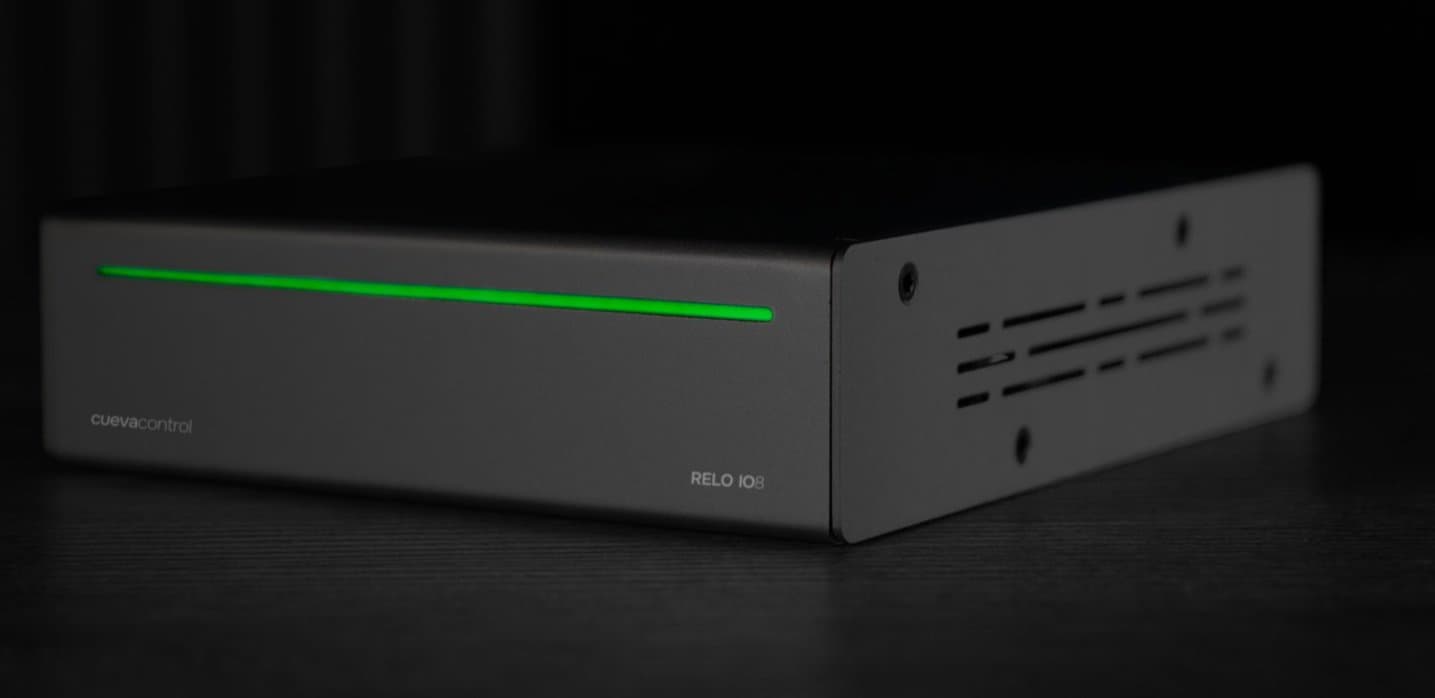
ArtNet is the industry-standard protocol for DMX over IP, and the RELO IO8 supports it natively. In this guide we'll set up a flow that responds to a GPIO input and sends an ArtNet command to trigger a lighting cue on your console.
What is ArtNet?
ArtNet encapsulates DMX512 data inside UDP packets and sends them over a standard IP network. Each "universe" carries 512 channels of 8-bit lighting data. Most professional lighting consoles and fixtures can receive ArtNet natively.
Configuring the ArtNet send node
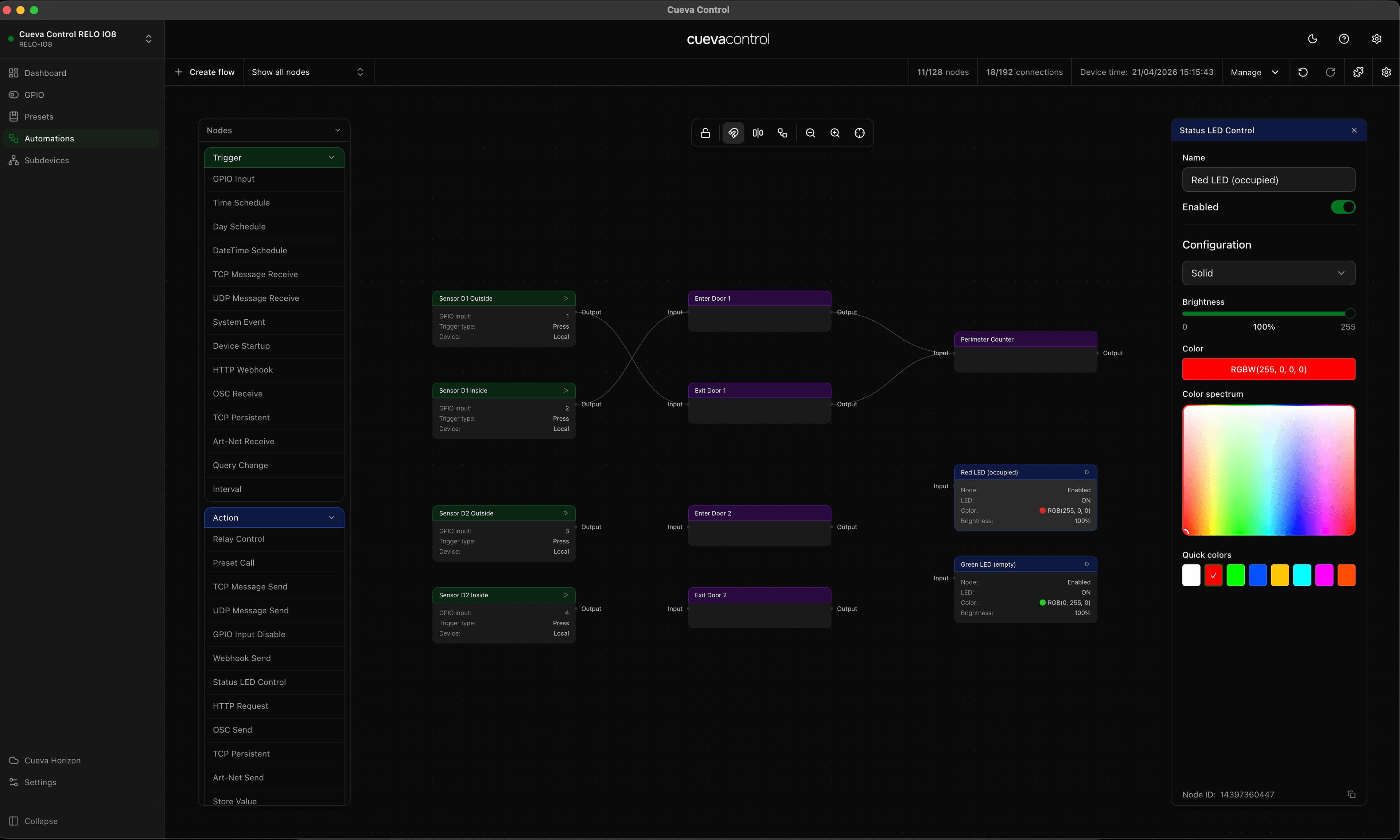
In the Cueva Control flow editor, the ArtNet Send node lets you target a specific universe and set individual channel values. You can send a full universe snapshot, or target individual channels using the channel map in the node settings.
- Set the destination IP (unicast to console, or 255.255.255.255 for broadcast)
- Set the universe number (0–32767)
- Define channel values as a static snapshot or a variable map
- Connect any trigger node to fire the cue
Art-Net v4 supports up to 32,768 universes. Cueva Control uses Art-Net v4 by default. Check your console documentation to ensure it supports the same version.
Troubleshooting
If ArtNet frames aren't arriving at your console, check that both devices are on the same subnet (typically 2.x.x.x or 10.x.x.x for ArtNet) and that the universe number matches. Also verify no firewall is blocking UDP port 6454.