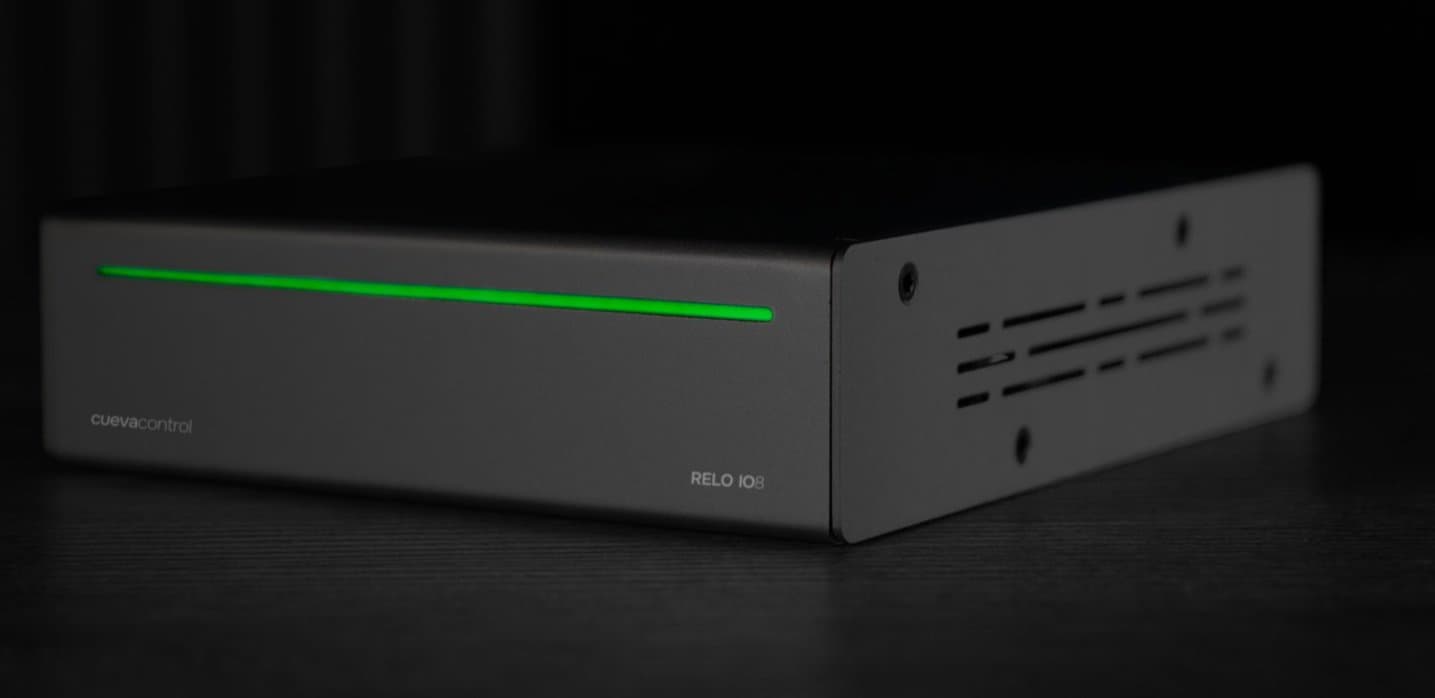
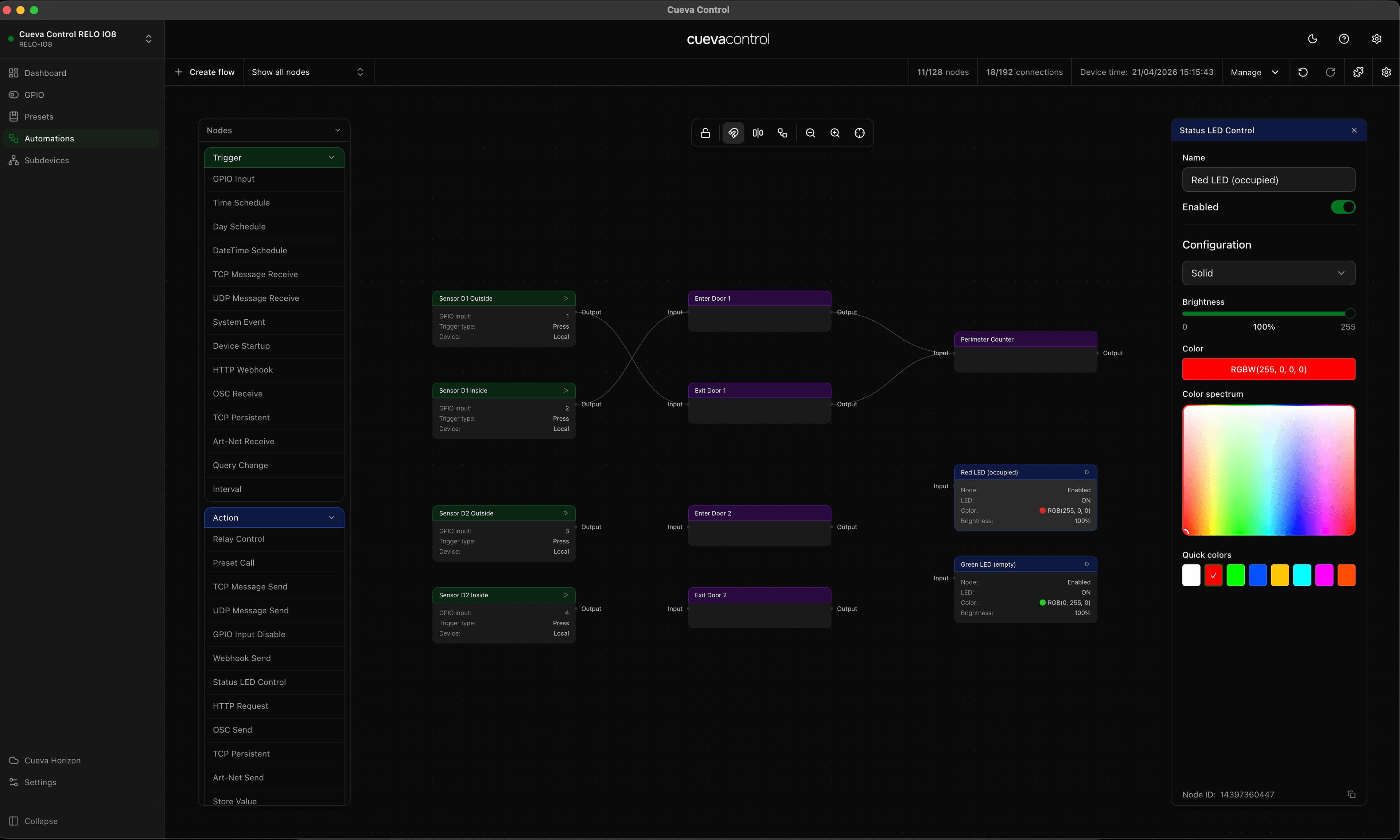
The Cueva Control flow editor is built around a simple idea: connect triggers to actions with logic in between. In this guide we'll build a complete flow from scratch: a button on a GPIO input triggers a relay, sends an HTTP request and logs a variable.
What you'll need
- Cueva Desktop (Mac or Windows)
- A RELO IO8 connected to your network
- A physical button or dry contact wired to GPIO Input 1
- Something connected to Relay Output 1
Step 1: add a GPIO input trigger
Open a new flow in the editor. From the node panel on the left, drag a GPIO Input node onto the canvas. In its settings, set the pin to GPIO 1 and the mode to Pull-up (active low). This will fire when the contact closes.
Step 2: connect a relay on action
Drag a Relay On node onto the canvas. Click the output handle on the GPIO Input node, then click the input handle on the Relay On node. Set the GPIO Output to Relay 1. Now when the button is pressed, Relay 1 will close.
Tip: hold Alt and drag an edge to disconnect it. Press Escape at any time to cancel a pending connection.
Step 3: add an HTTP notification
Branch the flow by adding an HTTP Request node connected to the same GPIO Input output. Set the method to POST and the URL to your webhook endpoint. The relay and HTTP request will fire in parallel on every button press.
Step 4: deploy to device
Click Deploy in the top bar. The flow is compiled and pushed to your RELO IO8 over the network. It runs on-device immediately. No cloud dependency, no round-trip latency.