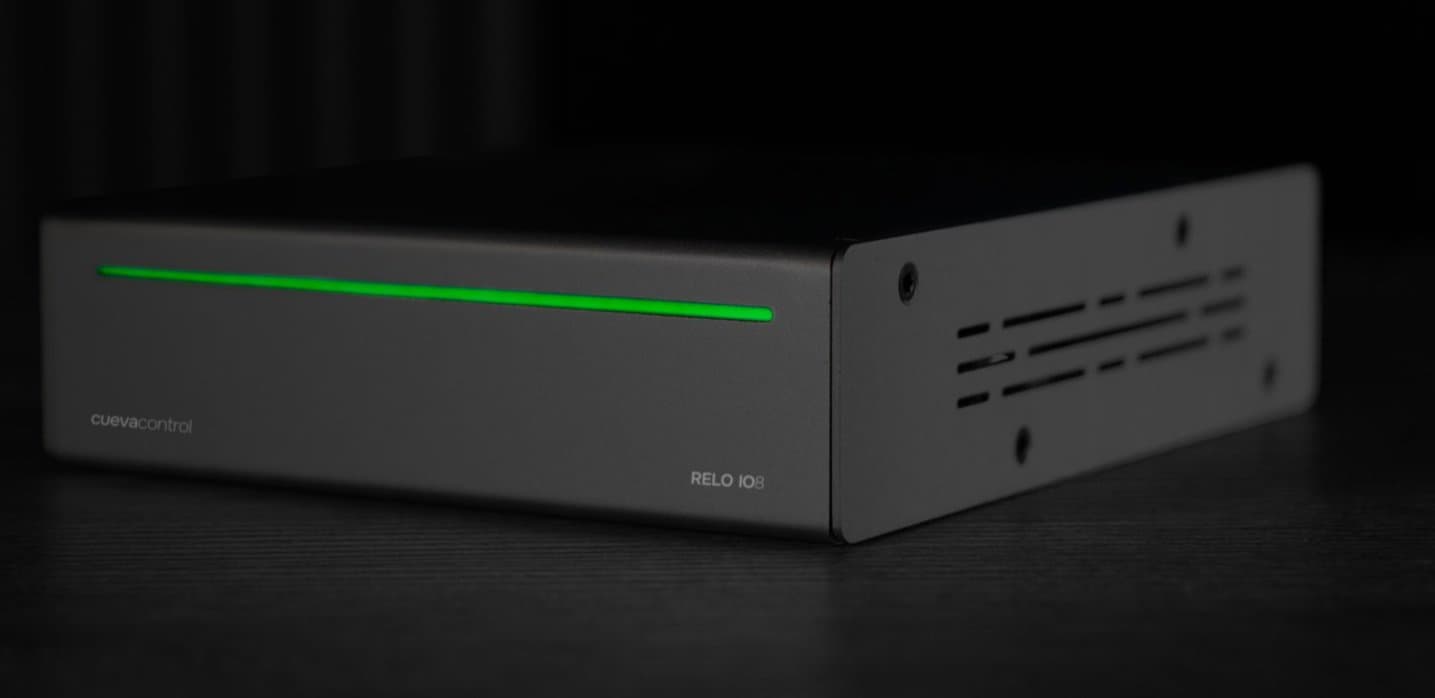
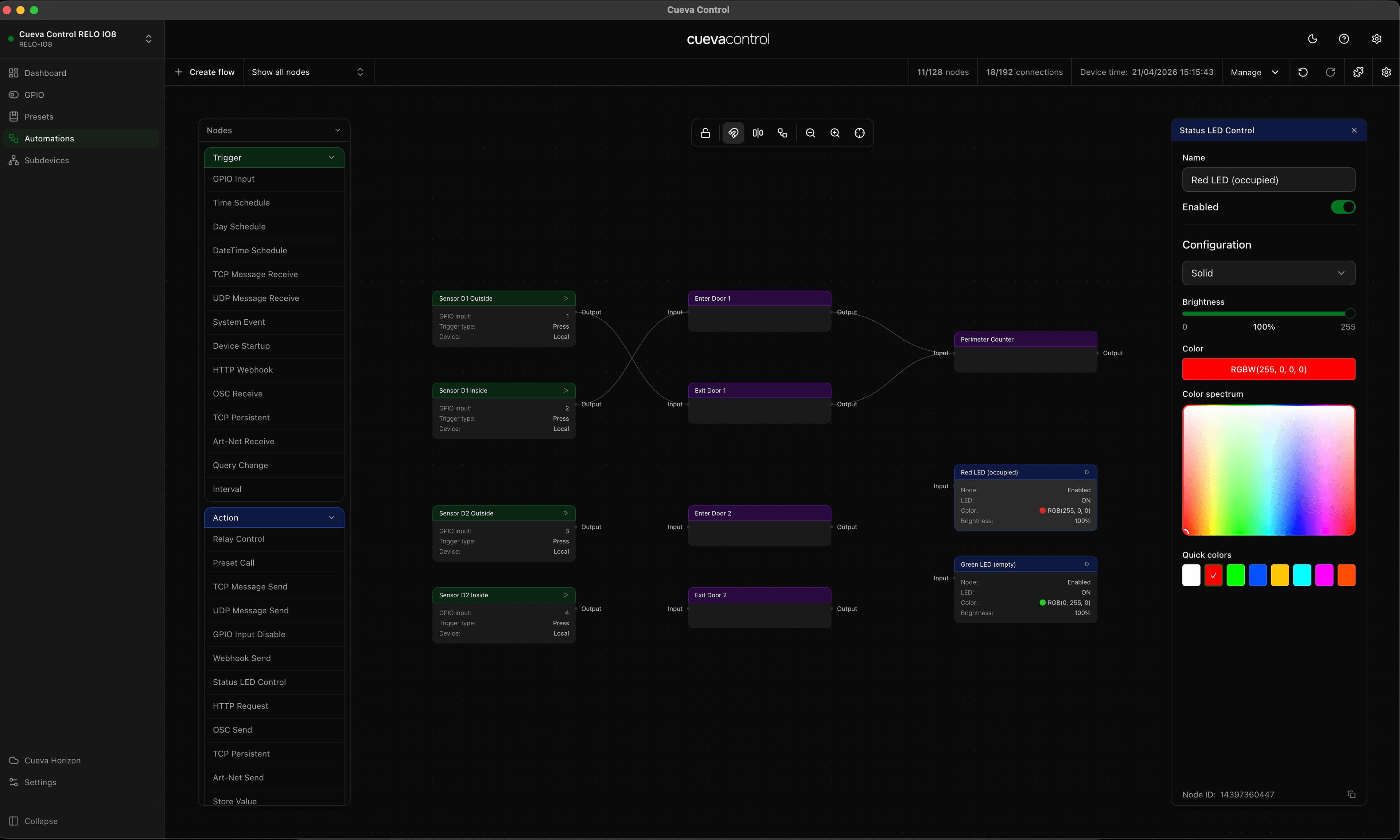
Physical buttons can send Art-Net packets directly to DMX fixtures without a lighting console. This guide covers the complete setup for GPIO to Art-Net conversion using the RELO IO8.
Signal path
Button press → GPIO input → Art-Net packet → DMX fixture or console
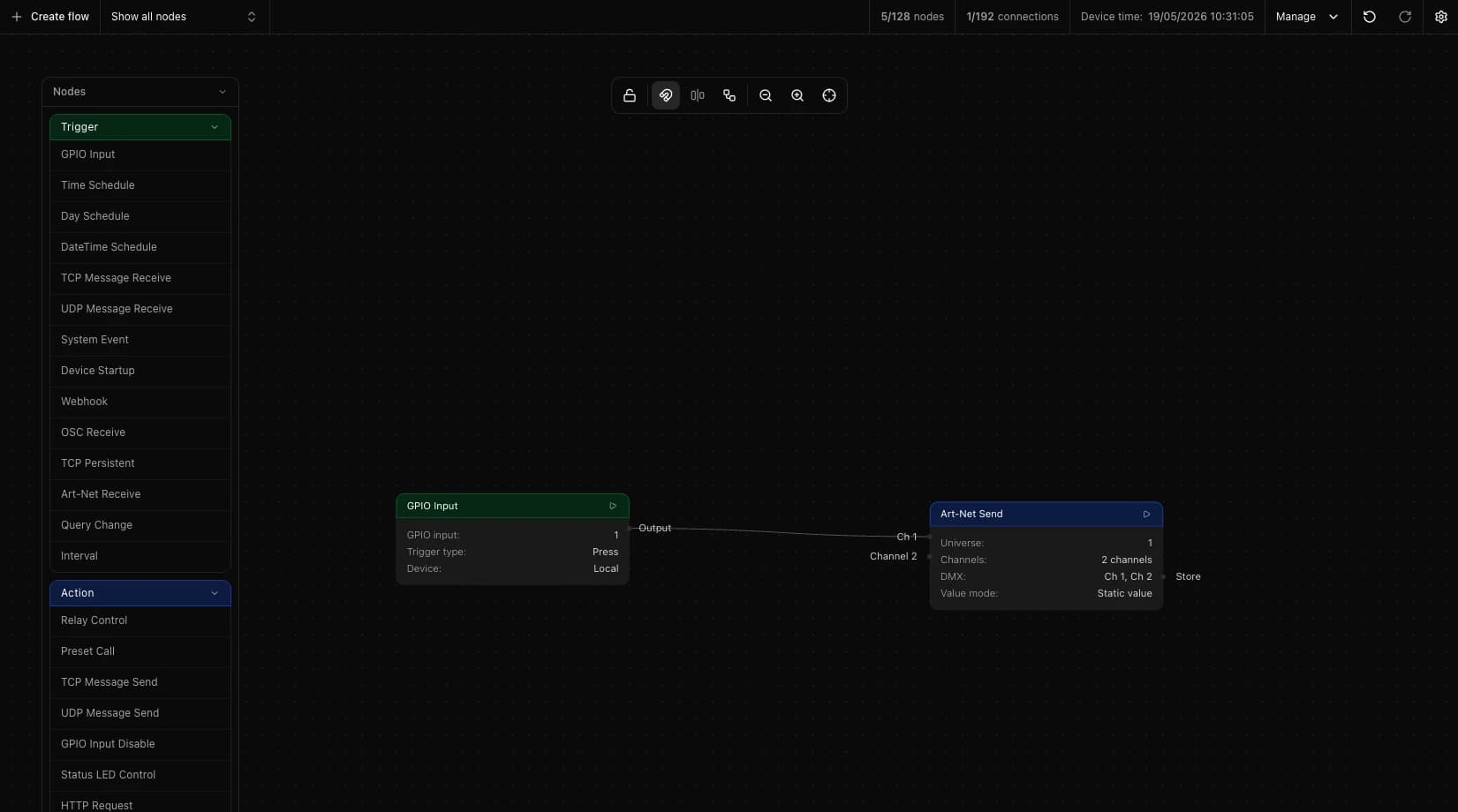
The RELO IO8 converts a contact closure into an Art-Net DMX frame and broadcasts it over Ethernet to any device listening on the configured universe.
Hardware configuration
Connect your button between the GPIO input terminal and ground. The button needs to provide a clean contact closure. Connect the RELO IO8 to your network switch via RJ45. The RELO IO8 and all Art-Net receivers need to be on the same subnet. Art-Net uses broadcast by default, so no routing configuration is needed.
DMX fixtures or consoles on the network will receive the Art-Net packets on the configured universe.
Flow configuration
Build the automation in Cueva Desktop using two or three nodes:
GPIO input trigger
- Type: GPIO input
- Settings: pin (1-8), trigger type: Rising
- Output: trigger
Connect the output of this node to your Art-Net send node.
Art-Net send action
- Type: Art-Net send
- Settings: universe (0-255), broadcast IP (typically 255.255.255.255)
- Endpoints: channel (0-511), value mode: Static, static value (0-255)
- Input: execute
For multiple channels, add multiple endpoints to the same Art-Net send node. Each endpoint controls one DMX channel.
Optional: delay node
- Type: Delay
- Settings: Delay MS
- Place between GPIO input and Art-Net send to add a pause before the packet fires
Deploy the flow to your RELO IO8 via Cueva Desktop when ready.
Example: four button panel
A restaurant entrance with four preset lighting looks, one button per scene.
- Button 1 (GPIO pin 1): daytime mode, universe 0, channels 1-8 at value 200
- Button 2 (GPIO pin 2): evening mode, universe 0, channels 1-8 at 150 and channels 9-16 at 180
- Button 3 (GPIO pin 3): late night mode, universe 0, all channels at value 80
- Button 4 (GPIO pin 4): off, universe 0, all channels at value 0
Each button gets its own GPIO input trigger connected to its own Art-Net send node. Four separate flows, each with two nodes.
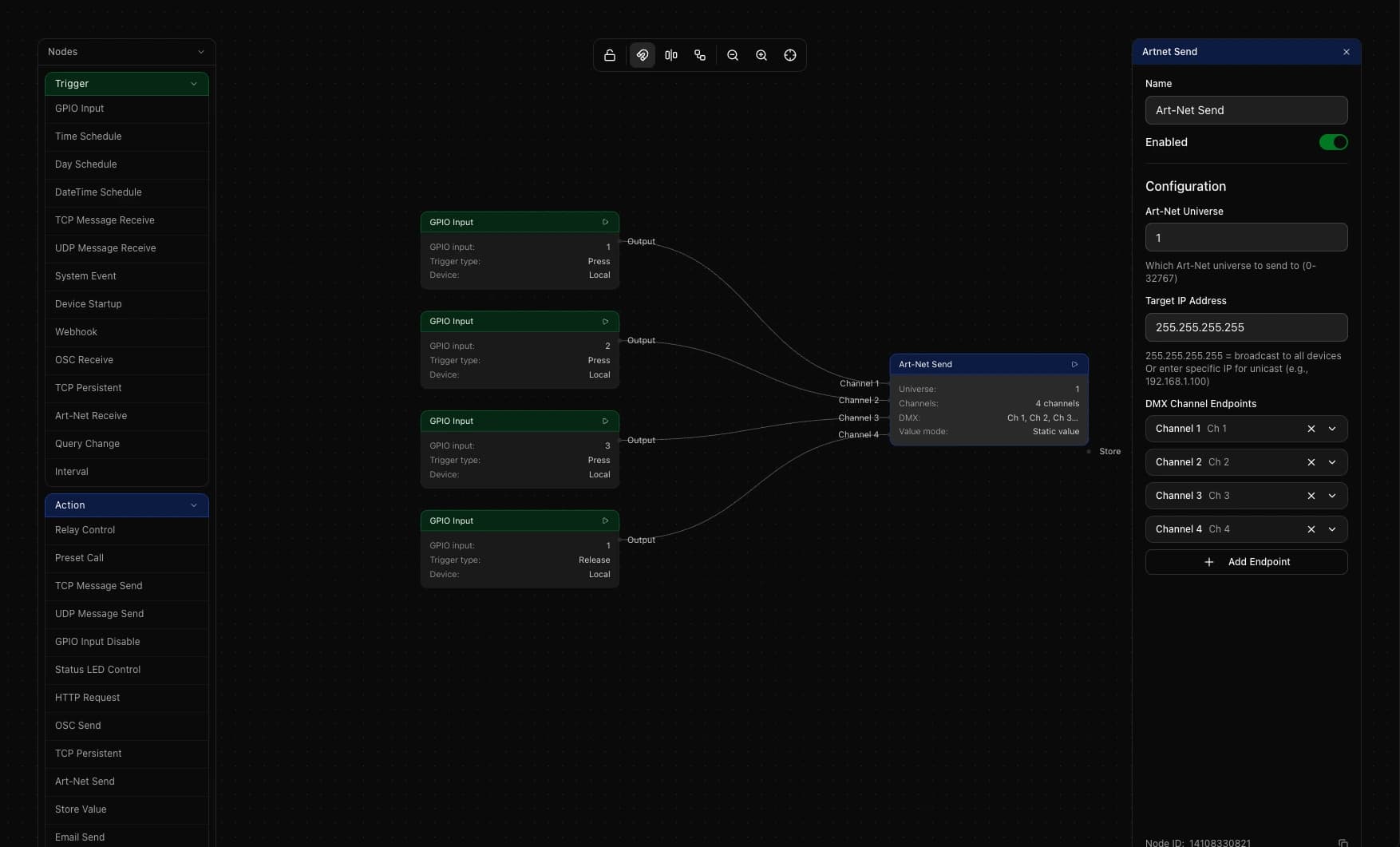
Multi-universe configuration
To control fixtures across multiple universes from one button, chain multiple Art-Net send nodes from a single GPIO input trigger. Connect the first Art-Net send output to the second node's input. All packets fire in sequence when the button is pressed.
Sequential scenes
Use the Sequencer execution node to step through multiple lighting looks from one button press. Connect each sequencer output to a different Art-Net send node. One press advances through up to 16 scenes at a defined interval.
Conditional triggering by time
Add a Time condition node between GPIO input and Art-Net send. Connect the true output to one Art-Net configuration and the false output to another. The same button sends different DMX values depending on the time of day.
- Node type: Time
- Settings: comparison: Before, end hour: 18, end minute: 0
Console integration
Art-Net from the RELO IO8 can run alongside a lighting console on the same network. Both devices transmit to the same universe.
- Standard merge behavior: the console takes priority when active and the RELO IO8 controls when the console is idle
- Alternative: use separate universes. Console on 0-3, RELO IO8 on universe 4 for architectural zones. No merge conflicts.
Beyond basic triggering
The same pattern works for other real-world applications:
- Combined relay and Art-Net: run GPIO input into two parallel nodes (Art-Net send and Relay control) to fire a lighting scene and drop a motorised screen at the same time
- Multi-button sequences: use the Latch execution node to require two buttons pressed in order before Art-Net fires, which prevents accidental scene changes during live events
Troubleshooting
- Button detected but no Art-Net output: check the universe number matches between the RELO IO8 and the receiving device, and verify the broadcast IP is correct for your subnet
- Fixtures respond to some buttons but not others: check GPIO pin numbers match the physical wiring and use the RELO IO8 web interface to monitor input states
- Art-Net packets not reaching the network: check your switch passes UDP broadcast on port 6454 and review VLAN configuration on managed switches
- Multiple sources conflict: only one device should control each DMX channel unless HTP or LTP merging is configured on your fixtures
Network requirements
Art-Net runs on UDP broadcast, port 6454. Your switch needs to pass UDP broadcast traffic. Multicast is not used in standard Art-Net.
- Packet size: one Art-Net frame is 530 bytes per button press, so bandwidth is not a concern for typical installations
- Latency: GPIO detection to Art-Net transmission on the RELO IO8 takes milliseconds. Total button-to-fixture response on a switched Ethernet network is well under 100ms